+, point at card, walk away with a filled-in record. No shutter, no alignment grid.1. Why onboarding is the whole battle
Gift-card wallets have a notorious activation curve: users download them with enthusiasm, get to the "Add your first card" screen, realize they have to type a 16-digit card number, a PIN, a balance, an expiration date, pick a color, choose a category, and close the app. It is the single biggest reason these apps get uninstalled in the first five minutes.
Cue's bet: the photo is enough, and even the photo shouldn't feel like a photo. Tap +, point at the card, let the app decide when it's ready. No shutter tap. No alignment grid. No modal spinner. And for the growing share of cards that arrive as an email rather than a piece of plastic, a parallel first-touch: tap Share in Mail, pick CardCue Pro, done. Section 4 covers that second doorway. Two more round out the intake story: import a screenshot or photo of a card from the photo library (same extraction pipeline, no camera needed), or use voice entry and tell Cue the brand and balance out loud.
That bet required solving four problems at once:
- Removing the shutter tap without sacrificing accuracy.
- Extracting structured card data from one frame, fast.
- Never storing sensitive data (card number + PIN) on our servers, and offering a "Scan on-device only" setting for anyone who wants the read itself to skip the cloud.
- Handling cards that lie about what they're carrying, the PIN is under a scratch-off you haven't removed yet, the barcode is on the other side, the balance is actually a free hamburger.
2. The shutter-less moment
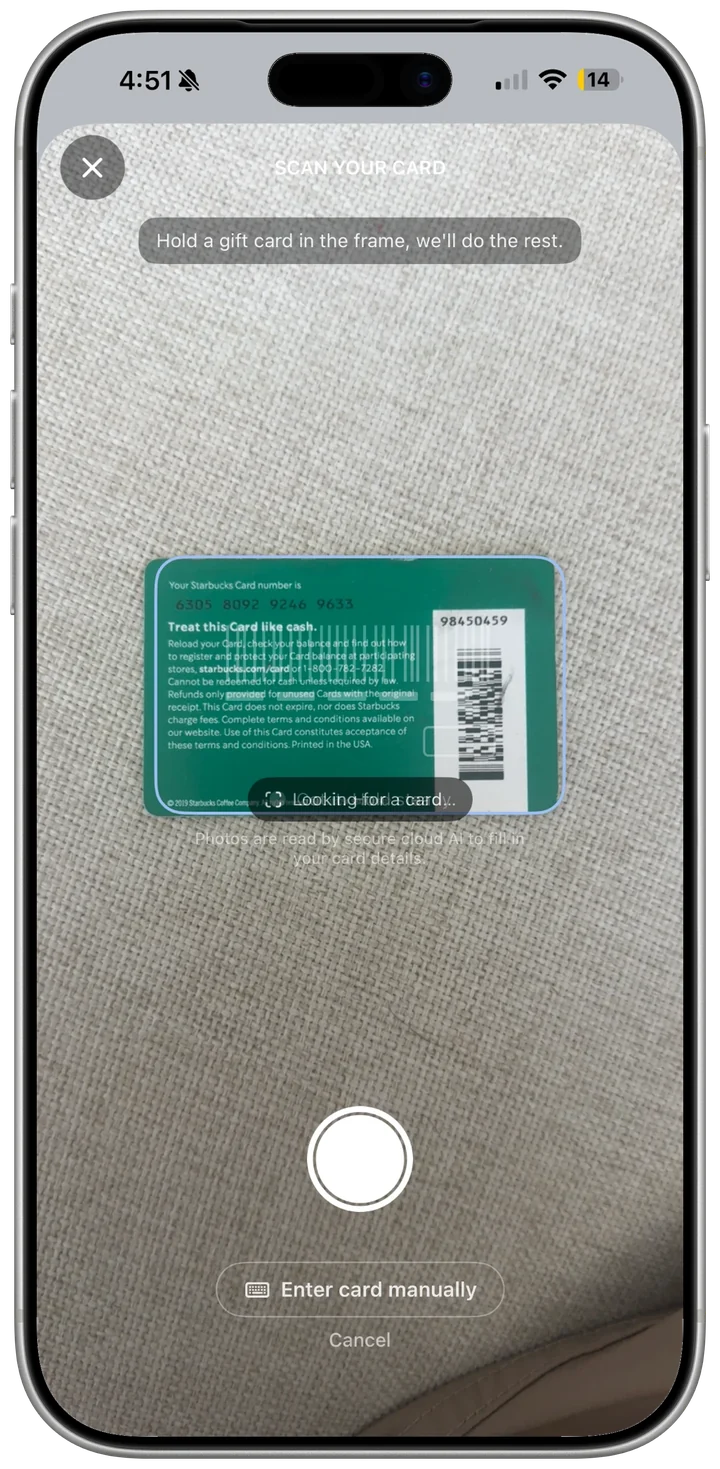
The second you tap + in the wallet, CardCue Pro presents AddCardLauncher, which immediately presents CardScannerView. There is no sheet transition to a form first, the camera is the first UI. Modeled on Apple Pay's "Add Card" flow, with one crucial difference: we don't need the card to be aligned inside a rectangle.
Under the hood, an AVCaptureVideoDataOutput streams frames at full rate; a throttle drops us to ~5 fps of actual analysis. Each analyzed frame runs two reusable Vision requests in parallel:
VNDetectBarcodesRequest, any symbology (Code 128, QR, PDF417, …)VNRecognizeTextRequest, fast-profile OCR, looking for a run of 10+ digits (card number or stamped ID)
Stable-frame detection confirms the same payload across 2–3 frames before firing. When it fires, AVCapturePhotoOutput takes a full-resolution still and hands it back up to AddCardLauncher.
Fallbacks, because physics is mean:
- If auto-fire hasn't triggered after ~4 seconds, a manual shutter button fades in. The user can still capture an ugly card.
- DEBUG/simulator builds have no camera feed, so the scanner swaps itself for a
UIImagePickerController.photoLibrarypicker, the same extraction pipeline runs on the chosen image. - Two escape hatches are always visible: "Skip, enter manually" (go straight to a blank form) and "No barcode / QR / PIN" (the loyalty path, no extraction attempt, no prefill, user types the card number directly).
State that drives the auto-fire (last-analyzed timestamp, stable-frame counter, hasFired flag) is confined to the video capture queue with dispatchPrecondition guards, so a rapid double-capture race can't happen even if two frames detect simultaneously. High-frequency delegate callbacks run inside an autoreleasepool to keep buffer memory flat under load.
3. The extraction pipeline: Vision first, Claude by default
Once a photo is captured, it flows through CardScanService.shared.scan(image:):
Engine A: Vision OCR (on-device, always first)
VisionOCRScanner runs VNRecognizeTextRequest against the still image and pipes the recognized lines through six statically-compiled regexes (hoisted to static let so they don't recompile per scan):
$NN.NNbalance detection- Expiration dates (
MM/YY,MM/YYYY,MM/DD/YYYY,exp: …) - Card number runs (
\b\d{10,19}\b) - PIN lines (
PIN: ####) - Balance-check URL / phone
- Redemption phrases (
present this card for …,redeem for …,good for …)
It also looks for PIN-related cues without a PIN value ("scratch to reveal," "redemption code under coating," "silver panel") and sets a pinLikelyCovered flag, section 5 explains what that triggers.
Vision always runs first, and it always runs on-device. For the vast majority of gift cards it catches the essentials: a readable brand, a printed balance, a 16-digit number, a barcode. But Vision's pass is the opening read, not the final one. With cloud scanning on (the default), the captured image is sent securely to Claude with Vision's output riding along as a hint, and Claude's answer is what populates the form. Turn on Scan on-device only in Settings and Vision's read stands alone; nothing leaves the phone.
Engine B: Claude Vision (cloud, on by default)
Claude is the primary extraction engine. When cloud scanning is on (the default) and the Anthropic API key is configured, every camera scan image goes securely to Claude, with Vision's on-device output attached as a hint. That's what makes ornate or unusually-laid-out cards, hand-lettered certificates, and cards with promotional text Vision's regexes don't cover come back clean. Flip the "Scan on-device only" privacy toggle in Settings and the cloud call never happens; Vision alone fills the form.
When Claude runs, it gets a strict-JSON prompt that enumerates every field CardCue Pro supports:
{
  "name": "Starbucks",
  "balance": 27.38,
  "cardNumber": "6011 2338 4401 9921",
  "pin": "4412",
  "barcode": "6011233844019921",
  "expiration": "2026-08-31",
  "balanceCheckURL": "starbucks.com/card",
  "balanceCheckPhone": "1-800-782-7282",
  "cannotBeDigitized": false,
  "digitizabilityReason": null,
  "redeemsFor": null,
  "pinLikelyCovered": null
}
Claude's advantage is context: it knows "Present this card at checkout" implies a physical-only restaurant coupon, "Good through 8/31/26" is an expiration, and the logo of a gold cup is a Starbucks card. Only the captured image is sent, no wallet context, no user identity, no device telemetry. Under Anthropic's standard commercial terms the image may be retained for up to 30 days, then deleted; it is never used to train models. Our privacy policy tracks the current retention status.
The outcome type
Both engines produce the same ScannedCardInfo payload, wrapped in a CardScanOutcome so downstream code handles analytics and error copy uniformly:
enum CardScanOutcome {
    case vision(ScannedCardInfo)   // on-device hit
    case ai(ScannedCardInfo)       // Claude cloud read (the default)
    case emptyNoAI                 // Vision empty, AI unavailable
    case failed(Error)             // Network or parse error
}
4. The second doorway: Share-from-Mail (available now)
Not every gift card starts on a piece of plastic. A growing share of them arrive as an email: an Amazon code from a relative, a Starbucks reload from a friend, a Nike promo, a corporate rewards certificate, a birthday e-gift. The camera is a dead end for those. There's nothing to point at.
So CardCue Pro ships a second intake path, built on the iOS 18+ Share Sheet. The user opens the gift-card email in Mail, taps Share, picks CardCue Pro from the app row. The Add Card form opens with the brand, card number, PIN, balance, and expiration already filled in. If a PDF or image was attached, it comes along. The user reviews, corrects anything the parser got wrong, hits Save. (A card gifted by another CardCue Pro user skips even this: it arrives as a claim link, and the first claim earns the new user a free month of Pro, see the give-a-month program.)
Under the hood: a dedicated iOS Share Extension target receives the email text and any attachments, writes them into the shared App Group, and opens the main app via a cardcue://intake deep link. The form reads the pending payload on appear and pre-fills. The extension uses a regex-only parser, the same family of patterns the on-device Vision engine uses for printed cards. If the regexes miss a field, the user fills it in by hand, and the main app's AI scan path stays available as a separate route. (The Privacy kit covers the extension's no-key, no-upload architecture in full.)
One share, one tap to save. Two actions. A card from a Mail thread lands in the wallet inside the three seconds the doctrine budgets for intake, with no network call leaving the extension.
That's the first of the three moments the Right-Moment Doctrine has to clear, intake, cue, redemption, applied to a different starting point. The camera path clears intake because the shutter fires itself. The Share path clears it because the user never had to leave the email, never had to screenshot anything, never had to copy a code and paste it into a form. A share action and a save tap are all the motion the wallet asks for.
5. The scratch-off guard
Gift cards commonly hide the redemption PIN under a silver scratch-off coating. If the scanner runs on a card whose PIN panel is intact, the card number may read clean but the PIN value will be empty, and the user will save the card, then get frustrated at the register when the code is unusable.
Cue catches this. Both engines flag pinLikelyCovered = true when they see words like scratch, silver panel, redemption code below, reveal PIN with no PIN value extracted. AddCardLauncher checks the flag on the first pass, if the card type is .gift, the scan shows coverage language, and the pin field is empty, the flow halts with:
Scratch off the PIN
This gift card's PIN is hidden under a silver scratch-off coating. Peel it off with a coin, then scan again so we can read the code.
[Scan again][Enter manually]
This check only runs for gift cards, loyalty and punch cards have no PIN expectation, so they never block here.
6. The smart flip prompt
A common pattern on modern gift cards: card number on the front, barcode on the back. Or vice versa. A single-sided scan gets half the data.
After the first scan, AddCardLauncher inspects the ScannedCardInfo and asks a targeted question only when exactly one side of the pair is missing:
| First-pass found | Missing | Prompt shown |
|---|---|---|
| cardNumber only | barcode | "We got the card number. Flip the card so we can grab the barcode." |
| barcode only | cardNumber | "We got the barcode. Flip the card so we can grab the card number." |
| both | nothing | No prompt, straight to the form |
| neither | n/a | Straight to the form (user can retry or type) |
When the user flips and captures the back, the second ScannedCardInfo merges into the first via ScannedCardInfo.merged(with:): fields that live on the back (cardNumber, barcode) let the second pass win; everything else is first-pass wins. A skipped flip prompt routes to the form with whatever the first pass captured.
This is deliberately only prompted for gift cards. Loyalty/punch cards have a single identifier that lives on one face; prompting them to flip would be pointless.
7. Brand recognition and auto-styling
Once a name is extracted, BrandRecognizer consults a curated table of 200+ merchants with canonical display name, default category, default accent color, and logo asset. That's how a photo of a "Starbucks" card comes out of the scanner already categorized as Coffee, colored green, and showing the Starbucks card gradient without the user picking anything.
For unrecognized brands, a keyword-based category fallback tags cards as Food, Coffee, Grocery, Retail, Pharmacy, Restaurant, Travel, etc. based on words found in the card's text.
A note on the scan photo. The image captured by the scanner is used for data extraction, not display. The card face that shows up in the wallet is rendered from the curated design system (brand gradient + logo) so every card in the wallet visually belongs to the same product. The raw photos, if the user took any as personal references from within CardEditView, are stored separately from the scan extraction path; see §12.
8. The biometric gate for secrets
Extracted card numbers and PINs never land in plain SwiftData. The moment cardNumber or pin comes back non-empty from the scanner, they're written to the iOS Keychain via secureCardNumber / securePin accessors. The SwiftData record stores empty strings in those fields and gets the hasSecrets gate.
Every UI surface that reads those values, CardDetailView's "Reveal number" button, CardEditView's PIN field, the "Show at Register" flow, wraps the read in an LAContext Face ID / Touch ID evaluation. The form shows masked placeholders (•••• •••• •••• 9921) until the user explicitly authenticates. Same UX as Apple Pay.
This is the design reason we stuck with scan-as-extraction even when dual-side capture is available: the biometric gate is a stronger safeguard than any amount of "don't display this data" logic, and it applies uniformly whether the data came from Vision, Claude, or manual entry.
9. Single-use reward certificates
The same pipeline extracts a new redeemsFor field for cards that trade in items rather than dollars, an In-N-Out "Award of Excellence," a Baskin-Robbins free-scoop coupon, a restaurant "free dessert" card. They carry a card number and PIN (so they trigger the biometric gate), but there's no balance, they redeem for a specific item like "FREE Hamburger or Cheeseburger."
Vision catches these via a cascade of regexes:
present this card for (?:one |a )?(.{5,70})redeem(?:able)? for (?:one |a )?(.{5,70})good for (?:one |a )?(.{5,70})
Claude extracts them directly from the prompt schema. Whichever engine returns a hit also auto-flips cannotBeDigitized = true, these cards must be physically presented at the register, and the scanner telling the app that up front spares the user a wasted "Show at Register" attempt.
Downstream: the wallet row shows the redemption item instead of "$0.00," and CardDetailView swaps its balance hero for a "Redeems For" banner.
10. When the balance isn't on the card: the Check Balance flow
Cue has a firm rule: we never invent a number that wasn't on the card. A scanner that hallucinates your gift-card balance isn't saving you friction, it's lying to you. So the balance field is only populated when the amount is visibly printed on the card face (a sticker, a scratch-off, a promo tear-off). For the much more common case, a plastic card that just lists a website and a 1-800 number, the scanner sets up a helper instead.
Most gift cards print two ways to check your balance: a URL (balance.starbucks.com) and a toll-free phone number. Vision extracts both during the scan into balanceCheckURL and balanceCheckPhone. On the card detail screen, tapping Check Balance does three things at once:
- Copies the card number to the clipboard. The most painful part of checking a balance is typing a 16-digit number into a phone keypad or web form. CardCue Pro skips that step, the number is already in your clipboard, ready to paste.
- Offers the two routes the issuer provides. One tap opens the balance-check URL in Safari; another places the call to the toll-free number. Whichever path the user prefers, they're one tap away.
- Hands back to the card with the balance field focused and waiting. When the user returns to CardCue Pro, the balance field is already open with the numeric keypad up. No menu hunt, no re-tap. The returned amount is saved in seconds.
This is the scanner's honest partner: rather than fake a number we can't see, we turn the five-minute phone tree into a thirty-second round trip. It's also the only path the app takes across the network for balance data, we never ping balance servers on behalf of the user.
11. What the user actually sees
- Tap
+in the wallet. Camera opens immediately, no sheet transition, no type picker. The card-reticle hint is a soft rounded rectangle, not a hard align-me-here frame. - Point at the card. Somewhere in the next ~1.5 seconds, a subtle haptic tick fires and the shutter trips. No tap required.
- Spinner flash. "Reading your card…" over black while the pipeline runs, usually under a second on device, 1–3 seconds when Claude is consulted.
- One of three branches:
- Scratch-off alert (if the PIN's hidden under silver).
- Flip prompt (if the barcode or card number wants the other side).
- Straight to
CardFormView, prefilled.
- Form review. Every field the pipeline extracted is populated. The user corrects anything off, hits Save.
- Biometric prompt only if a card number or PIN was extracted.
- Card in wallet. Auto-categorized, colored, participating in geofence monitoring and widget snapshots within seconds.
Median end-to-end, for a card that doesn't need a flip: under five seconds from tapping + to a saved card.
12. Rescanning an existing card
Life happens: you spend $12 on the card, the printed balance on the sticker changes, or you want to refresh the barcode photo. CardEditView has a dedicated "Scan Card to Update Details" row, a first-class action, visually separated from the optional front/back reference photos.
This separation is deliberate:
| Feature | Purpose | Affects saved data? |
|---|---|---|
| Scan Card to Update Details | Re-run the full extraction pipeline | Yes, merges fresh values into the form |
| Card Photos (Optional) | Personal reference images | Only saves the image, not extracted fields |
Rescan reuses the same CardScannerView + CardScanService pipeline. On success, it merges authoritative fields the user typically wants refreshed (name, balance, card number, barcode) over the existing values, and only fills fields that are easy to mis-read partially (PIN, URL, phone, redemption item) when they're currently empty, a partial scan can't stomp a correctly-entered PIN.
The rescan action is gated to card types with scannable secrets (gift and cash cards). Loyalty and punch cards don't show the row because they have nothing to re-read.
13. Accessibility
The scanner is fully VoiceOver-compatible. The overlay escape hatches are real buttons with clear labels. When the photo is processed, the prefilled form reads back every populated field, and a user who couldn't see the preview still gets a complete summary before being asked to confirm.
The shutter-less capture removes a specific accessibility friction: users with fine-motor impairments don't need to tap a small on-screen button while steadying a card. The camera takes its own shot when the frame is good.
Manual entry remains one tap away from every screen that offers a scan. We are scanner-first, not scanner-only.
14. Failure modes we handle explicitly
- No stable detection after ~4 s. Manual shutter button fades in; user can force-capture a weirdly-lit or embossed card.
- Captured frame has no extractable data. Vision returns nothing; with cloud scanning on (the default), Claude's read fills the gap. If both come up empty, the user sees "Couldn't read that card, try again in better lighting" with a retry and a "Enter manually" bail.
- PIN panel intact. Scratch-off alert blocks the save (gift cards only).
- One-sided capture. Flip prompt for gift cards missing exactly one of cardNumber/barcode.
- Camera permission denied. Immediate alert with "Open Settings" and "Enter manually" escape.
- Glare on the balance. Field defaults to empty. We never hallucinate a balance.
- Card number extracted but unconvincing. Luhn checksum must validate. If not, the field stays empty.
- Simulator/DEBUG builds. No camera feed available, so the scanner swaps to photo-library picker automatically. Same pipeline, same outcomes.
Every failure mode is exercised by fixture images in ScannerTests.
15. Files of record
| File | Role |
|---|---|
Views/Cards/AddCardLauncher.swift | Orchestrator, scanner → pipeline → PIN-covered alert → flip prompt → form handoff |
Views/Cards/CardScannerView.swift | Apple-Pay-style auto-fire camera with escape hatches and sim fallback |
Services/Services.swift | CardScanService, VisionOCRScanner, AnthropicService, ScannedCardInfo (+ merged(with:)) |
Services/BrandRecognizer.swift | Brand → category + color + logo lookup |
Views/Cards/CardFormView.swift | Scan-result apply, biometric gate on reveal, in-form rescan |
Views/Cards/CardEditView.swift | Edit-mode rescan action, reference-photo section (separated) |
Models/Models.swift | GiftCard.hasSecrets, GiftCard.redeemsFor, GiftCard.isCertificate, GiftCard.cannotBeDigitized |
16. The product bet, restated
Onboarding isn't a chore to make shorter, it's the moment the app has to prove it's smarter than the user expected. Cue's scan-first architecture is designed so that the first ten seconds of using the app feel like the camera is reading the user's mind: they reached for the card, the app already had the camera up, and before they finished aiming, the card was saved.
If we get that right, the user adds a second card that day, and a third within a week. If we get it wrong, a type picker, a shutter tap, a "please align inside the rectangle", they never come back.
17. After the scan: the wallet on your phone
The scanner's job ends with a saved card; the doctrine's job ends with the user not needing the plastic anymore. Once a barcode and a front photo are on file, the physical card stops being load-bearing. Customers leave the original at home and walk into the store with only a phone, biometric-gated brightness-boosted barcode on screen, cashier scans, transaction completes, no plastic ever leaves a drawer. Your cards are always with you, and ready to use. And a digitized barcode card can also be exported to Apple Wallet with one tap, live at launch, for the days you'd rather not open any app at all.
Limited to cards that store value in a barcode or QR code, the majority of consumer gift cards, loyalty cards, and reward certificates. Magstripe-only cards, chip-and-PIN cards, and traditional prepaid Visa/Mastercard gift cards still need to ride along, sadly. Cue keeps their balances and PINs straight either way, so a customer never waves a card around at a checkout that won't take it.
CardCue Pro, by Pika Product Lab LLC. Scanner powered by Apple Vision on-device first, with a secure cloud read by Claude (Anthropic) on by default; turn on Scan on-device only in Settings to keep every scan on your phone. Only the captured image is ever sent, never your wallet, identity, or location, and Anthropic may retain scan images for up to 30 days per our privacy policy.